Help and support.
Get TESORIN working: video guides, sync, bank alerts, Wallet taps, and bank connections. Questions about plans, privacy, or regions are in the FAQs. For direct help, email hello@trytesorin.com.
 Video guides
Are there video guides?
How do I get set up and add entries?
These short videos open on YouTube.
- Set up TESORIN for the first time
- Pick your companion
- Add an expense
- Add income
- Add an expense with a swipe
- Use keypad shortcuts
- Move money between accounts
- Add an expense in another currency
- Edit or delete an entry
- Add a cash, bank, or card account
- Track a savings account that earns interest
- Import a CSV from another app
- Find any entry
- Search anything
- Make your own category
- Create custom categories, step by step
- Organize spending with subcategories
- Give merchants real names
How do I budget, track bills, and see my spending?
These short videos open on YouTube.
- Set up a recurring bill with a reminder
- Track your subscriptions
- Get reminded before a subscription renews
- Add your credit card’s statement and due dates
- Set a monthly budget
- Set category limits
- Use Smart Budget
- Read your budget forecast
- See where your money goes
- Use the Analytics tab
- Read your week in brief
- Export your year as a PDF
How do I turn bank alerts and Apple Pay taps into drafts?
These short videos open on YouTube and show the setup on iPhone. Captures come with Premium, Lifetime, and Ultra.
How do I track net worth, debt, and investments?
These short videos open on YouTube.
- Add an asset
- Add a liability
- Read your net worth history and forecast
- Plan your debt payoff
- Add a mortgage
- Track property tax
- Add an investment account and holding
- Record a buy
- Read a holding
- Add gold or silver
- Add a GIC or fixed deposit
- Set up recurring contributions
- Set an investment policy
- Record a sale and see your realized gain
How do I plan goals, taxes, and family money?
How do I change settings and protect my privacy?
These short videos open on YouTube.
How do I learn more or send feedback?
These short videos open on YouTube.
 Sync & devices
Which devices can sync?
How do I connect a browser?
I use TESORIN on an iPhone and an iPad. How do I sync them?
A change has not reached my other device.
Can I move sync to a new phone or tablet?
Can TESORIN read what is synced?
 Bank SMS
How do I set up bank SMS capture on iPhone?
Build one Message automation in Apple’s Shortcuts app. It sends your bank alerts to TESORIN, which never reads your inbox. Watch the setup video
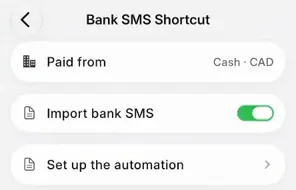
In TESORIN, open More › Manage wallet › Bank SMS Shortcut. Turn on Import bank SMS.
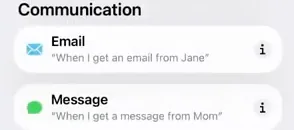
In Shortcuts, tap + or New Automation, then choose Message.
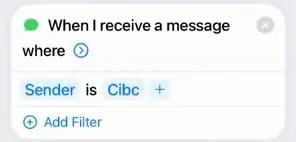
Tap Sender and pick your bank’s alert sender, saved as a contact. Current iOS needs one, so make one automation per sender. To narrow it, add one phrase, such as “debited”, with Add Filter.
Choose Run Immediately, with Ask Before Running off.
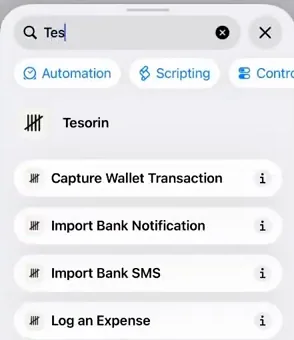
Add TESORIN’s Import Bank SMS action.
Tap Message and pick Shortcut Input. Tap it again and choose Content (or Text), never Sender.
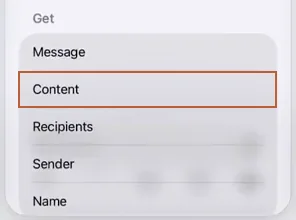
Tap Done. After your next bank alert, its draft waits in Wallet › Review expense imports.
I set up the automation, but nothing arrives. What should I check?
- There’s no Sender. Current iOS needs one. Save your bank’s alert sender as a contact and choose it, one automation per sender.
- Message holds the wrong thing. It must be Shortcut Input’s Content, not the sender, a typed sample, or the words “Shortcut Input”.
- The phrase doesn’t match. With a phrase set, an alert must come from the Sender and contain that phrase. Use one phrase per automation, never a list.
- It asks before running. Choose Run Immediately.
- It stopped after an update. Open and unlock TESORIN once. Older automations may show the action as Import Bank Message. If it’s missing, add Import Bank SMS again.
Then check the status in Bank SMS Shortcut.
What does the Bank SMS Shortcut status mean?
It’s under More › Manage wallet › Bank SMS Shortcut, and shows what happened to the last message.
- Waiting for the first message. The automation hasn’t run, or its filters didn’t match.
- Last message skipped. A message arrived, but it wasn’t read as one clear transaction. If every alert is skipped, check that Message holds Content.
- SMS import could not finish. What the automation passed couldn’t be read. Check that Message holds Content, then run it again.
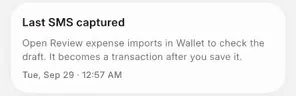
- Last SMS captured. It worked. The draft waits in Review expense imports.
Which bank alerts can TESORIN read?
How does bank SMS capture work on Android?
 Bank notifications
How do I set up bank notification capture?
On iOS 27, a Notification automation sends your bank app’s alerts to TESORIN. Use it if your bank alerts you in its app instead of by SMS. Watch the setup video
In TESORIN, open More › Manage wallet › Bank notification capture. Choose Paid from and turn on Import bank notifications.
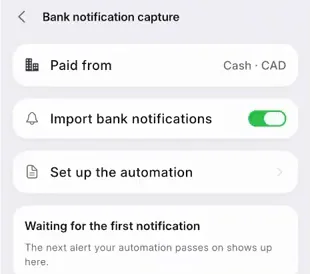
In Shortcuts, tap +, then Automation above the keyboard, then Notification.
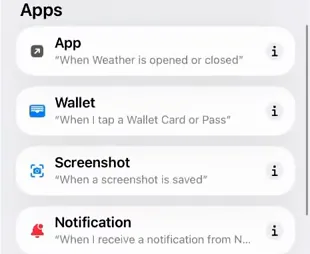
Tap App and choose your bank’s app.
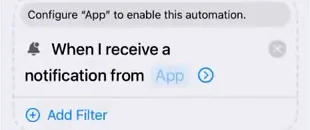
Add TESORIN’s Import Bank Notification action. Tap Message and pick Notification.
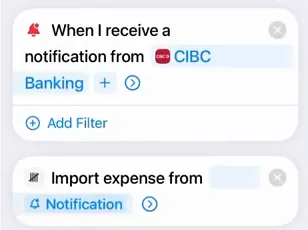
Choose Run Immediately, then tap Done.
Bank notification capture isn’t working. What should I check?
- There’s no Notification trigger. Update your iPhone to iOS 27.
- Nothing arrives. Make sure your bank’s alerts aren’t silenced and the automation is on.
- Alerts are skipped. Check that Message holds the Notification variable. Promotions and OTPs are always skipped.
- One purchase shows up twice. Your bank sent an SMS and a notification. Use one capture method per bank.
- It asks before running. Turn off Ask Before Running.
 Wallet tap capture
How do I set up Wallet tap capture?
With iOS 17 or later, each Apple Pay tap with one card becomes a draft. Watch the setup video
In TESORIN, open More › Manage wallet › Wallet tap capture. Set Paid from and turn on Capture Apple Pay taps.
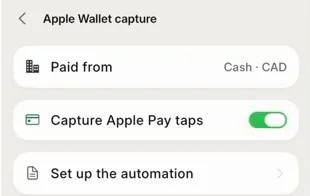
In Shortcuts, tap Automation, then +, then Wallet (Transaction before iOS 26).
Select only the card behind Paid from, never Any Card. Switch Automation on and Notify off.
Add Capture Wallet Transaction. Tap each row, add the blue Transaction variable, and choose its match.
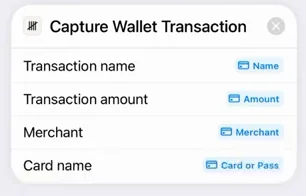
Tap Done, then pay once with that card.
Wallet tap capture isn’t working. What should I check?
- A test run shows this. Running it from Shortcuts has no tap to read. Pay with the card instead.
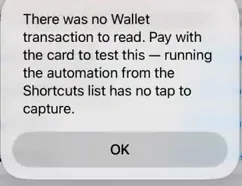
- The action isn’t in the list. Search for “Capture Wallet Transaction”, and open TESORIN once after updating.
- It asks for a comment, opens TESORIN, then fails. That’s Add expense. Replace it with Capture Wallet Transaction.
- Nothing reaches Review after a tap. Check that Capture Apple Pay taps is on, the automation’s card is the one behind Paid from, and you’re signed in.
Which purchases does Wallet tap capture catch?
 Bank connections
Can I connect my bank to TESORIN?
What does a bank connection sync?
How often does it sync?
Are bank transactions added automatically?
How is my bank data handled?
Can I use bank connections on the web app?
How do I disconnect a bank?
Need direct help?
Contact TESORIN support by email. Include the issue, your device platform, and any relevant screenshots. Do not send passwords or full financial account details.